How to Edit Trending Walking Reels in VN Editor (Complete Step-by-Step Guide)
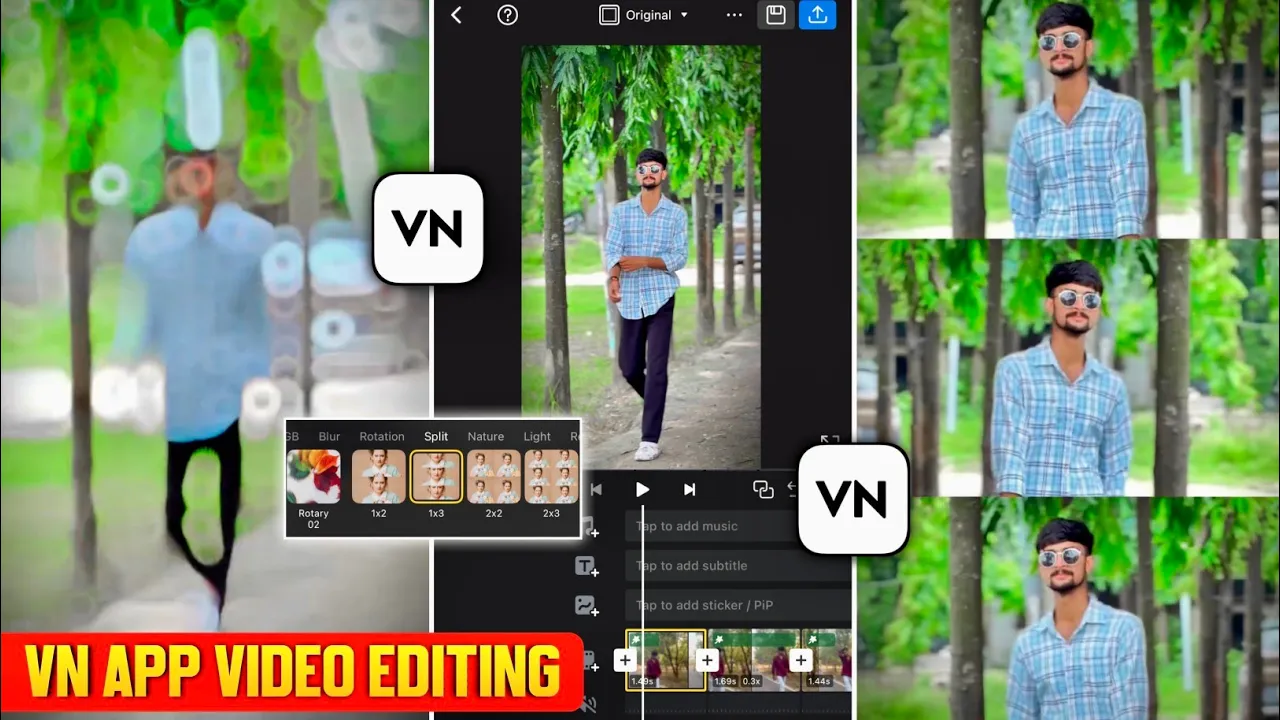
Want to create those cinematic walking reels that are trending all over Instagram? In this tutorial, I’ll show you exactly how to edit a professional-looking walking reel using the VN Video Editor. We’ll cover everything step by step—from trimming your clips and adding iPhone-style slow motion to professional color grading, trending effects, and exporting your final video.
By the end of this guide, you’ll know how to create eye-catching walking reels that look premium and have a much better chance of performing well on Instagram.
What You’ll Learn
In this tutorial, you’ll learn how to:
- Edit a walking reel in VN Editor
- Remove unwanted parts of your video
- Remove background audio
- Create iPhone-style color grading
- Add smooth slow-motion effects
- Apply trending animations and visual effects
- Export your video in high quality
- Add Instagram trending music
- Increase your chances of going viral with consistent uploads
Step 1: Install VN Video Editor
If you haven’t already installed VN Editor:
- Download VN Video Editor from the Google Play Store.
- Open the app.
- Tap the + (Plus) icon.
- Select New Project.
- Choose your walking video from your gallery.
- Tap the blue arrow to import the clip.
Your video will now appear on the editing timeline.
Official Website: https://vlognow.me/
Step 2: Remove the VN Watermark
After importing the video:
- Scroll to the end of the timeline.
- Delete the default VN watermark.
This gives your final video a cleaner and more professional appearance.
Step 3: Remove the Original Background Sound
For better editing:
- Select the video clip.
- Tap Volume.
- Reduce the volume to 0%.
Removing the original audio makes it easier to synchronize your reel with trending Instagram music later.
Step 4: Trim Unwanted Footage
Play the video carefully and identify unnecessary footage.
Once you find the unwanted section:
- Tap Split.
- Delete the unnecessary clip.
Keeping only the best moments makes your reel more engaging.
Step 5: Create iPhone-Style Color Grading
Now comes one of the most important parts of the edit.
Instead of using one-click filters, manually adjust the colors for a much more professional look.
Tap the video clip → Adjust.
Recommended Starting Settings
| Setting | Value |
|---|---|
| Exposure | -12 |
| Contrast | +5 |
| Brightness | Slightly Increase |
| Saturation | Around +43 |
| Vibrance | +8 |
| Temperature | -5 |
Remember that these values should always be adjusted according to your own footage and lighting conditions.
Step 6: Fine-Tune Colors Using HSL
The HSL panel gives you much more control over your video’s appearance.
Green Background
If your background contains trees or grass:
- Increase Saturation
- Increase Hue
- Increase Lightness
This makes the greenery look richer and more vibrant.
Yellow Tones
Adjust Yellow according to your background.
Increase saturation if needed, then fine-tune hue and lightness until it looks natural.
Improve Skin Tone
If your face becomes too red after color grading:
Adjust the Orange color:
- Reduce Saturation
- Increase Hue
- Increase Lightness
You can also make minor adjustments to the Red channel to create a brighter and more natural skin tone.
Blue Colors
If you’re wearing blue jeans or blue clothing:
Increase the Blue saturation slightly to make them stand out without looking unnatural.
Step 7: Sharpen the Video
Increase Sharpen by around 12%.
This improves overall video clarity and gives the footage a crisp finish.
Step 8: Create Smooth Slow Motion
Now it’s time to add the cinematic slow-motion effect.
Here’s how:
- Split the video into several smaller clips.
- Select one of the smaller clips.
- Tap Speed.
- Choose Regular.
- Set the speed to 0.3x.
- Repeat the same process for every small clip.
Alternating between normal speed and slow motion creates a dynamic cinematic effect similar to videos recorded on an iPhone.
Step 9: Apply Trending VN Effects
Select the first clip.
Tap:
FX → Choose your preferred animation
Apply the animation to all clips for a consistent style throughout the reel.
You can also experiment with popular multi-layer effects available inside VN Editor to make your reel look even more modern.
Step 10: Export the Video
Once you’re satisfied:
- Tap the Export button.
- Choose your preferred resolution and frame rate.
- Export the project in the highest quality available.
Step 11: Add Trending Effects in Beat App
To make your reel even more attractive, import the exported video into the Beat App.
Inside Beat:
- Create a New Project.
- Import your exported VN video.
Now you can apply additional trending effects.
Popular Effects
- Halo Blur
- Flash
- Electric Flame
- Face Effects
- Body Effects
- Shake Effects
- Multi-layer Effects
Adjust the duration of every effect so it matches your video’s transitions.
Step 12: Export Again
Once all effects have been applied:
- Export the final version in maximum quality.
Your cinematic walking reel is now complete.
Add Trending Instagram Music
Instead of adding music inside the editor:
- Upload your reel to Instagram.
- Choose a currently trending audio from Instagram’s music library.
- Publish the reel.
Using trending music directly from Instagram can improve discoverability.
You can explore Instagram’s official creator resources here:
Simple Instagram Growth Tip
One important piece of advice:
Upload one quality reel every day for 30 consecutive days.
Consistency helps Instagram understand your content category and gives your videos more opportunities to reach new audiences. While no method can guarantee a viral video, consistently posting high-quality content with trending audio, strong editing, and engaging visuals can significantly improve your chances of growing your audience.
Final Thoughts
VN Editor is one of the easiest free mobile editing apps for creating professional-looking walking reels. By combining manual color grading, cinematic slow motion, layered effects, and trending Instagram audio, you can produce reels that stand out in the feed.
Practice these editing techniques on different videos, adjust the settings based on your footage, and keep experimenting with new effects. The more consistently you create content, the more your editing skills—and your audience—will grow.
Recommended Resources
- VN Video Editor: https://vlognow.me/
- Instagram Creators: https://creators.instagram.com/
- Instagram Blog: https://about.instagram.com/blog
- Meta Creators Best Practices: https://www.facebook.com/business/creators
SEO Keywords: VN Video Editor Tutorial, VN Walking Reel Editing, VN Slow Motion Tutorial, VN Color Grading, Instagram Walking Reels, Cinematic Reels Editing, VN Editor Effects, Beat App Effects, Viral Instagram Reels, VN Editor Guide.