How to Create Viral Typography Reels in VN Editor Using AI Voice (Complete Guide)
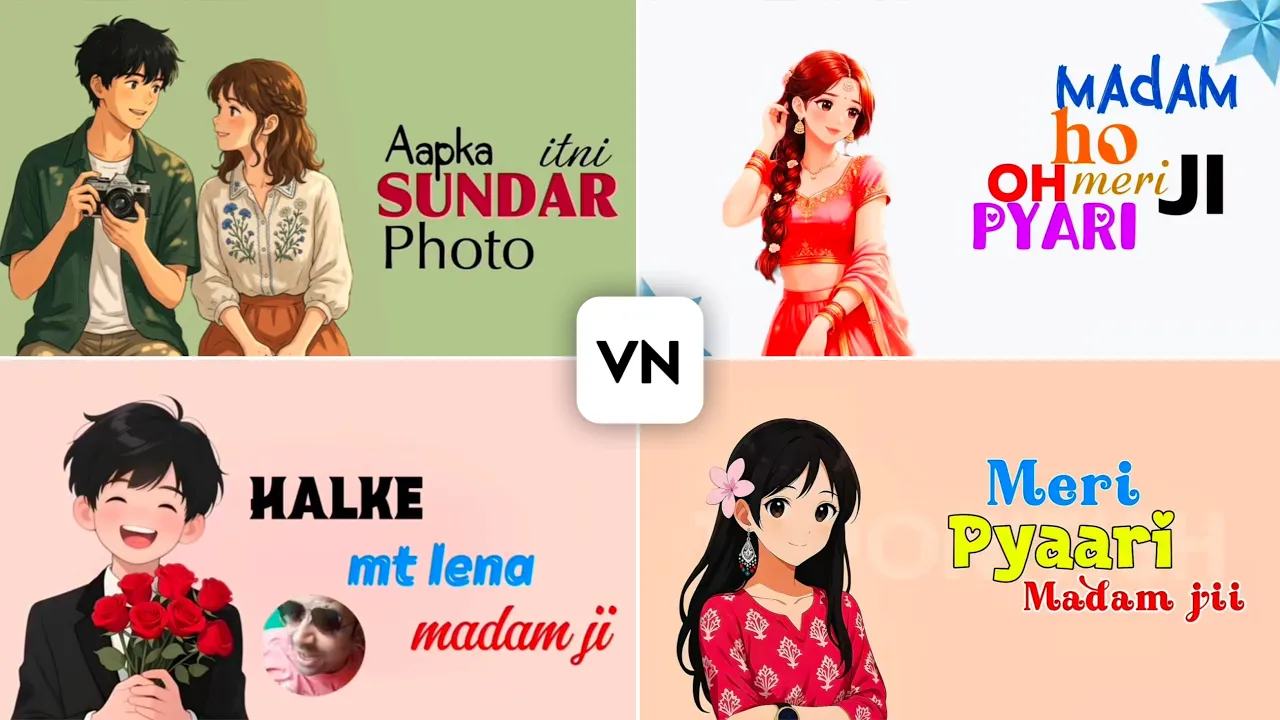
Typography reels are one of the hottest content trends on Instagram right now. Whether it’s couples, best friends, or friends tagging each other in emotional or funny dialogue reels, these videos often receive massive engagement and have a high chance of going viral.
In this tutorial, I’ll show you exactly how to create these trending typography reels using the VN Video Editor. We’ll also use AI voice generation to make your videos sound realistic, even if you don’t want to record your own voice.
If you follow this guide till the end, you’ll be able to create professional-looking viral reels in just a few minutes.
Why Typography Reels Go Viral
Typography reels perform exceptionally well because viewers love sharing relatable dialogues. Emotional, romantic, motivational, funny, and attitude-based conversations encourage people to:
- Tag their friends
- Share with partners
- Send through Instagram DMs
- Save for later
This increases engagement dramatically, which helps Instagram push the reel to a larger audience.
Step 1: Find a Viral Dialogue
The first thing you need is a good dialogue.
If you already have one in mind, that’s great.
Otherwise:
- Open Instagram.
- Go to the Search section.
- Search keywords like:
- Cute Dialogues
- Romantic Dialogues
- Love Quotes
- Friendship Dialogues
- Attitude Dialogues
- Emotional Dialogues
Instagram is filled with viral dialogue reels, making it easy to find inspiration.
For example, one of the dialogues used in this tutorial is:
“Madam Ji, everything looks beautiful at the right time… but you look beautiful all the time.”
Simple, emotional dialogues like this tend to perform extremely well.
Step 2: Generate an AI Voice with ElevenLabs
Instead of recording your own voice, you can use AI to generate a natural-sounding voice.
One of the best tools for this is ElevenLabs.
Visit:
Steps
- Open Chrome.
- Visit ElevenLabs.
- Log into your account.
- Open the Speech section.
- Paste your dialogue.
Example:
Madam Ji, everything looks beautiful at the right time… but you look beautiful all the time.
Select the Best AI Model
Inside ElevenLabs:
- Choose Model V3
- Enable the Enhance option
This automatically adds emotions like laughter, pauses, and realistic expressions, making the voice sound much more natural.
Choose the Right Voice
Search for the Manav voice.
This voice is currently one of the most popular choices for viral Instagram reels because it sounds incredibly realistic.
After selecting the voice:
- Click Generate
- Listen to the preview
- Download the generated audio
Your AI dialogue is now ready.
Step 3: Open VN Video Editor
Download VN Video Editor if you haven’t already.
Official Website:
Open the app and:
- Tap New Project
- Choose a plain background
You can use:
- White
- Beige
- Cream
- Light pastel colors
Minimal backgrounds usually perform best for typography videos.
Step 4: Set the Canvas
Change your project size.
For Instagram Reels choose:
9:16 Vertical
Fill the entire screen with your background.
Step 5: Import the AI Voice
Now add the audio you generated.
Go to:
Music → My Music → Files
Locate your downloaded ElevenLabs audio and import it into the timeline.
Stretch the background so it matches the length of your dialogue.
Step 6: Add Character Images
Whenever the dialogue mentions a person, add an image.
For example:
When the voice says:
“Madam Ji…”
Insert a girl’s image.
Inside VN:
- Tap PIP
- Import Image
- Use Cutout to remove the background automatically.
Place the character wherever it looks best.
Step 7: Animate the Character
To make your reel more engaging:
- Add a keyframe at the beginning.
- Add another keyframe a little later.
- Move the image slightly.
Open the Curve settings and choose:
Quart Out
This creates a smooth animation.
Even subtle movement makes your reel feel more professional.
Step 8: Add Typography Text
Typography is the heart of this editing style.
Instead of writing the entire sentence, write it word by word.
For example:
Madam Ji
Everything
Looks
Beautiful
At
The
Right
Time
But
You
Always
Look
Beautiful
This creates a dynamic reading experience that keeps viewers engaged.
Step 9: Use Readable Fonts
Choose fonts that are easy to read.
Avoid overly decorative fonts.
Mix font styles occasionally to make important words stand out.
You can also:
- Change colors
- Increase font size
- Rotate slightly
- Position words differently
This keeps the typography visually interesting.
Step 10: Animate the Text
VN provides multiple animation presets.
Popular options include:
- Fade
- Reveal
- Slide Up
- Slide Down
- Zoom
- Pop
You don’t need to animate every word.
Animate only the important words to maintain a clean look.
Step 11: Match Every Word with the Voice
Carefully align each word with the AI voice.
Duplicate text layers to save time instead of creating every word from scratch.
Adjust:
- Timing
- Position
- Font
- Color
- Size
Continue until the entire dialogue is synchronized.
Step 12: Add Background Music
A little background music dramatically improves the final result.
Inside VN:
Music → My Music
Or use:
Extract From Video
to reuse music from another video.
Reduce the music volume so the dialogue remains clear.
A balanced mix creates a much better viewing experience.
Step 13: Create AI Character Images
If you don’t have suitable images, use AI image generators.
You can use:
- ChatGPT Image Generation
- Google Gemini
- Microsoft Designer
- Adobe Firefly
Example prompt:
Create a modern Indian girl wearing stylish casual clothes with a clean white background, realistic portrait, soft lighting, high quality.
You can also upload your own image and ask the AI to convert it into an artistic style while keeping a white background.
This helps maintain a clean and professional aesthetic.
Step 14: Export the Video
Once everything is complete:
- Preview your reel.
- Check text synchronization.
- Ensure animations are smooth.
- Verify the music volume.
Finally:
Tap Export
Your viral typography reel is ready to upload.
Tips to Increase Reel Views
To maximize your chances of going viral:
- Use trending dialogues.
- Keep the first three seconds engaging.
- Use clean typography.
- Stick with readable fonts.
- Add subtle animations.
- Maintain proper spacing.
- Use emotional or relatable dialogues.
- Upload consistently.
- Add relevant hashtags.
- Encourage viewers to tag friends in the caption.
Final Thoughts
Creating viral typography reels is much easier than it looks. By combining VN Video Editor, ElevenLabs AI voice generation, and AI-generated character images, you can produce professional-quality Instagram reels without expensive software or advanced editing skills.
The key is choosing relatable dialogues, syncing each word perfectly with the voice, using smooth animations, and keeping the design simple and readable. With consistent practice and creative storytelling, your typography reels can achieve impressive engagement and reach a much wider audience.
Helpful Resources
- VN Video Editor Official: https://vlognow.me/
- ElevenLabs AI Voice Generator: https://elevenlabs.io/
- Google Gemini: https://gemini.google.com/
- ChatGPT: https://chatgpt.com/
- Instagram Creators Guide: https://creators.instagram.com/
- Meta Best Practices for Reels: https://www.facebook.com/business/help/1197310371076463
By following this complete workflow, you’ll be well-equipped to create eye-catching typography reels that are optimized for Instagram and have the potential to go viral.