If you’ve ever wanted to create entertaining AI-generated story videos featuring animated vegetables, animals, or fictional characters, this method makes the process incredibly simple. In this guide, you’ll learn how to use ChatGPT and Google Flow to generate engaging AI videos with consistent characters, detailed prompts, and eye-catching thumbnails—all without spending money.
Whether you’re building a YouTube Shorts channel or creating long-form AI storytelling content, this workflow can help you produce videos much faster.
A Fun Example of an AI Story
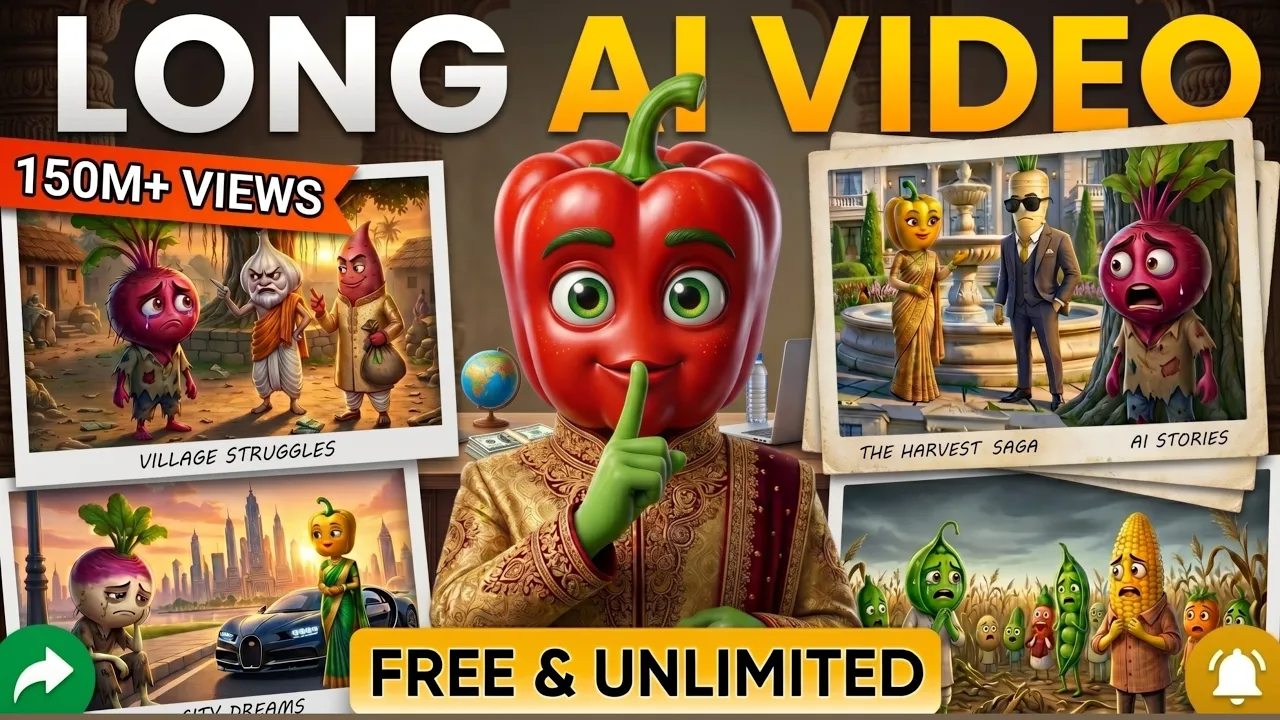
Imagine a beautiful rainy day where vegetables suddenly come to life.
A carrot admires a radish, while ginger becomes jealous. Soon, a funny love triangle develops, and just as things become interesting, a vegetable vendor arrives. Everyone rushes to hide, leading to hilarious moments and romantic conversations.
Scenes like these are entertaining, highly shareable, and surprisingly easy to create using AI.
The best part? The creator demonstrated that this entire video was made in around 10 minutes using free AI tools.
Can You Really Create These AI Videos for Free?
Yes.
By combining ChatGPT for story generation and Google Flow for AI video creation, you can produce professional-looking animated videos without advanced editing skills.
Even relatively new YouTube channels are gaining thousands of subscribers by consistently publishing this style of AI storytelling content.
What You’ll Need
Before getting started, prepare the following:
- ChatGPT
- Google Flow (AI Video Generator)
- A Gmail account
- Any basic video editing application
- Your custom prompts
Step 1: Generate an AI Story Using ChatGPT
Open ChatGPT and paste your story-generation prompt.
Inside the prompt, simply replace the topic with your own idea.
For example:
- Potato and Ladyfinger Love Story
- Carrot and Radish Romance
- Tomato vs Onion Comedy
- Cat and Mouse Friendship
- Talking Fruits Adventure
You can also specify the desired video length.
For example:
- 5-minute story
- 10-minute story
Next, list the characters you want to appear in your story.
Once everything is ready, submit the prompt.
Within a few moments, ChatGPT generates a complete story with dialogues, scene progression, and character interactions.
Step 2: Convert the Story into Detailed Video Prompts
After receiving your story, copy your second prompt (the prompt-conversion prompt).
Paste it into ChatGPT.
ChatGPT will ask for three dialogues from the generated story.
Simply copy any three dialogues from your script and paste them into ChatGPT.
After processing, ChatGPT generates an extremely detailed AI video prompt.
One major advantage of this method is consistency.
Each generated prompt maintains:
- The same characters
- The same outfits
- The same environment
- The same background
- Consistent visual style
This creates smooth storytelling across multiple scenes.
Step 3: Generate Videos Using Google Flow
Now open Google Flow.
Sign in using your Gmail account.
Create a new project.
Inside the project:
- Set the aspect ratio to 16:9
- Choose 10-second video generation
- Paste your AI video prompt
- Click Generate
Within a short time, your AI video clip will be ready.
Google Flow provides free daily credits, allowing users to generate multiple videos without paying.
Many creators also use multiple Gmail accounts to access additional free credits where permitted under the service’s terms.
Step 4: Continue Building the Story
Once your first clip is complete:
Return to ChatGPT.
Copy the next three dialogues from your story.
Paste them into ChatGPT again.
It will generate another consistent video prompt.
Paste that new prompt into Google Flow and generate the next scene.
Repeat this process until your complete story has been transformed into multiple video clips.
Because the prompts are carefully structured, your characters remain visually consistent throughout the entire video.
Step 5: Edit Everything Together
After generating all scenes:
Open your preferred editing software.
Examples include:
- CapCut
- VN Editor
- Adobe Premiere Pro
- DaVinci Resolve
Import every generated clip.
Then:
- Arrange scenes in order
- Add your channel logo or watermark
- Include background music if desired
- Add subtitles
- Export using high-quality settings
Your AI story video is now ready for YouTube.
Step 6: Create an Eye-Catching Thumbnail
Return to ChatGPT.
Ask it to generate a thumbnail prompt using your story.
For example:
Create a highly clickable YouTube thumbnail in a 16:9 aspect ratio based on this story. Make it colorful, emotional, and attention-grabbing so viewers instantly want to click.
ChatGPT can produce a detailed thumbnail concept matching your video’s theme.
You can then create the thumbnail using your preferred AI image generator.
Tips for Better AI Story Videos
To make your videos more engaging:
- Keep character appearances consistent.
- Use emotional and humorous dialogues.
- Generate scenes in small sections (around 10 seconds each).
- Add subtitles for better viewer retention.
- Include your logo or watermark on every video.
- Design bright, high-contrast thumbnails with expressive characters.
- Upload consistently to grow your YouTube channel.
Why This Workflow Works
This workflow combines AI writing and AI video generation into one streamlined process.
Instead of manually animating scenes, you simply:
- Generate a story.
- Convert it into AI prompts.
- Produce short video clips.
- Merge everything in a video editor.
Because the prompts preserve visual consistency, your videos look much more professional than randomly generated AI clips.
Frequently Asked Questions
Is ChatGPT free to use?
ChatGPT offers both free and paid plans. The free version is sufficient for generating stories and prompts, although paid plans may provide additional capabilities.
Is Google Flow free?
Google Flow offers limited free daily credits, allowing users to generate several AI video clips without purchasing a subscription.
Can I create longer videos?
Yes. Simply generate more story segments and continue creating additional scenes until your desired video length is reached.
Which aspect ratio should I use?
For standard YouTube videos, use 16:9. For YouTube Shorts, you can adapt the prompts for 9:16 vertical videos.
Do I need advanced editing skills?
No. Basic editing software is enough to combine the generated clips, add subtitles, and export your final video.
Final Thoughts
Creating AI-powered storytelling videos has never been easier. By using ChatGPT for scriptwriting and prompt generation, along with Google Flow for video creation, you can produce engaging, visually consistent content in a fraction of the time it would take with traditional animation.
Whether you want to create funny vegetable stories, animal adventures, or original fictional content, this workflow provides a simple way to generate high-quality videos using free AI tools. With creativity, consistency, and regular uploads, you can build an engaging YouTube channel around AI-generated storytelling.
Useful Resources
- ChatGPT: https://chatgpt.com/
- Google Flow: https://flow.google/
- Google AI Studio: https://aistudio.google.com/
- Google Gemini: https://gemini.google.com/
- YouTube Creator Academy: https://creatoracademy.youtube.com/