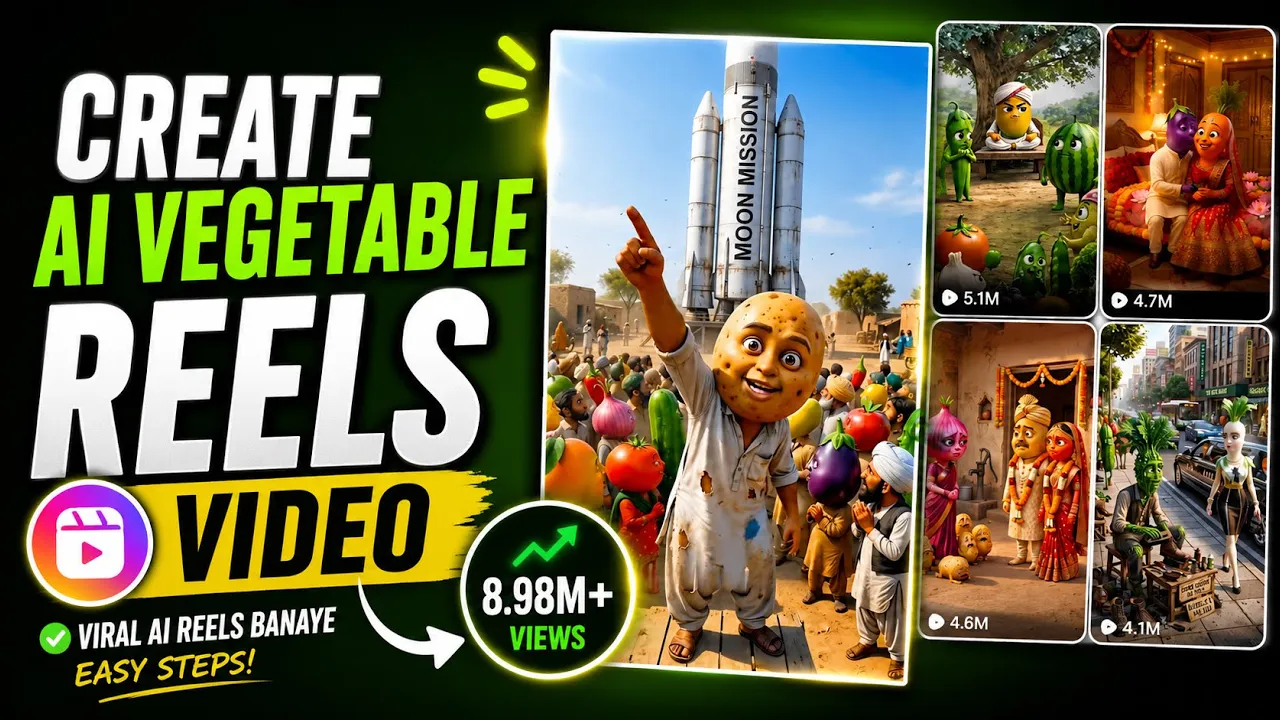
Animated vegetable story videos featuring characters like potatoes, tomatoes, onions, and other vegetables have become one of the biggest viral trends on Instagram Reels and YouTube Shorts. These fun AI-generated videos combine storytelling, humorous dialogues, expressive animations, and cinematic backgrounds, making them highly engaging for viewers.
In this guide, you’ll learn how to create these trending AI vegetable story videos using ChatGPT, Flow AI, and a simple video editor—all without needing advanced editing skills.
Why Are AI Vegetable Story Videos Going Viral?
You’ve probably seen videos where a potato invites other vegetables on a space adventure, or a tomato catches rain clouds to save a city. These videos are funny, creative, and packed with entertaining dialogues.
The secret behind their popularity is:
- Funny storytelling
- AI-generated animated characters
- Trending topics mixed into the story
- Easy-to-watch short-form content
- Perfect for Instagram Reels, TikTok, and YouTube Shorts
The best part? You can create similar videos in just a few minutes.
Step 1: Generate Your Story Using ChatGPT
The first thing you’ll need is ChatGPT.
If you don’t already have it, download the app or use the web version.
Now give ChatGPT a detailed prompt asking it to create an animated vegetable story.
Instead of a generic story, make it creative and funny.
For example:
- A potato takes all the vegetables on a honeymoon to the Moon.
- Tomatoes capture rain clouds to stop heavy rainfall.
- Potatoes travel into space with their village friends.
- Vegetables save Earth from aliens.
- Tomatoes become astronauts.
The more unique your idea is, the more entertaining your video will become.
Follow Trending Topics
One trick that helps videos go viral is using current trends.
For example:
- Heavy rainfall
- Festivals
- Cricket matches
- Space missions
- Viral memes
- Seasonal events
Instead of writing random stories, mix vegetables with trending news or popular internet topics.
Example:
“Tomatoes catch the rain clouds over Mumbai to stop the flooding.”
Creative stories usually perform much better on social media.
Step 2: Ask ChatGPT for Scene-by-Scene Prompts
Rather than generating one long paragraph, ask ChatGPT to create:
- Scene 1
- Scene 2
- Scene 3
- Scene 4
- Scene 5
For every scene, request:
- Character description
- Dialogue
- Camera angle
- Background
- Sound effects
- Background music
- Animation style
- Video generation prompt
This gives you everything needed for AI video generation.
If you’re making Shorts or Reels, 3 scenes are usually enough.
If you’re creating longer content, ask ChatGPT for 7–9 scenes.
Step 3: Copy Each AI Prompt
Once ChatGPT finishes your story, you’ll notice that every scene includes a detailed AI prompt.
Simply copy the prompt for Scene 1.
If you’d like, you can also edit the dialogue before generating the video.
For example:
Original:
“Friends, let’s go to space today!”
You can change it to:
“Everyone, today’s mission is to conquer the Moon!”
Custom dialogues make your videos more unique.
Step 4: Generate Videos with Flow AI
Now it’s time to convert your prompts into animated videos.
Open your browser and visit your preferred AI video generator.
Popular choices include:
- Flow AI
- Google Flow
- Vidu AI
- Other AI video generation platforms
After opening the platform:
- Create a New Project.
- Paste the prompt generated by ChatGPT.
- Switch to Video Generation mode.
- Select 9:16 aspect ratio for Instagram Reels and YouTube Shorts.
- Choose the recommended animation model (such as Omni Flash, if available).
- Set the video duration.
If ChatGPT recommends a 15-second scene but your AI tool supports only 10 seconds, simply split the scene into two clips.
Step 5: Generate Every Scene
Repeat the same process for each scene.
- Copy the next prompt from ChatGPT.
- Paste it into Flow AI.
- Generate the animation.
- Continue until every scene has been created.
This method ensures your final story flows naturally from beginning to end.
Free Credits and Subscription Tips
Most AI video generators provide free credits to new users.
For example:
- New accounts often receive around 280 free credits.
- Each generated video may consume approximately 15 credits, allowing you to create multiple videos before running out.
Some telecom providers and promotional offers may also include complimentary AI subscriptions or monthly credits. Availability varies by region and can change over time, so always check the latest offers through your provider’s official app or website.
Step 6: Download Your Videos
Once the rendering is complete:
- Preview every scene.
- Make sure the dialogue and animation match your story.
- Download the video in 720p or the highest available quality.
If the download button doesn’t respond, simply refresh the project page and try again.
Step 7: Combine All Scenes
Now open any video editing application.
Popular choices include:
- VN Editor
- CapCut
- InShot
- KineMaster
- VS Editor
Import all generated scenes in order.
Since the AI already created the animations and dialogues, very little editing is required.
You can simply:
- Arrange the clips.
- Add your channel name.
- Insert a Subscribe animation.
- Hide any watermark with text overlays if needed.
- Export the final video.
Export the Final Video
Choose:
- 1080×1920 resolution
- High quality
- 30 or 60 FPS
- Best available bitrate
Your AI animated vegetable story is now ready to upload to Instagram Reels, YouTube Shorts, TikTok, or Facebook Reels.
Tips to Make Your Videos Go Viral
- Use funny and emotional dialogues.
- Keep stories short and engaging.
- Follow current trends and memes.
- Add expressive character reactions.
- Include cinematic sound effects.
- Upload consistently.
- Use catchy titles and thumbnails.
The more creative your story, the better your chances of reaching a wider audience.
Final Thoughts
Creating AI animated vegetable story videos is much easier than it looks. With ChatGPT generating detailed scene-by-scene scripts and AI video generators turning those prompts into animations, you can produce entertaining viral content without advanced editing skills.
Focus on creating unique stories, experimenting with trending ideas, and keeping your videos concise and engaging. Over time, you’ll develop your own storytelling style that stands out across Instagram Reels and YouTube Shorts.
Helpful Resources
- ChatGPT (AI Story & Prompt Generator): https://chatgpt.com/
- OpenAI Prompting Guide: https://platform.openai.com/docs/guides/prompt-engineering
- Google AI Studio: https://aistudio.google.com/
- Flow AI (if available in your region): https://flow.google/
- Google Veo AI Overview: https://deepmind.google/technologies/veo/