How to Create a Viral Trending Troll Face Video in CapCut (Step-by-Step Guide)
If you’ve been scrolling through Instagram Reels or YouTube Shorts, you’ve probably noticed those hilarious Troll Face edits that suddenly appear with crazy expressions, shake effects, and funny sound effects. These videos are getting millions of views because they’re simple, entertaining, and perfect for short-form content.
In this guide, I’ll show you exactly how to create this trending Troll Face video editing effect using CapCut. The best part? It’s incredibly easy, even if you’re a beginner.
Let’s get started!
What You’ll Need
Before you begin editing, make sure you have:
- CapCut installed on your device.
- A VPN app (if CapCut features are unavailable in your region).
- A funny video clip with expressive facial reactions.
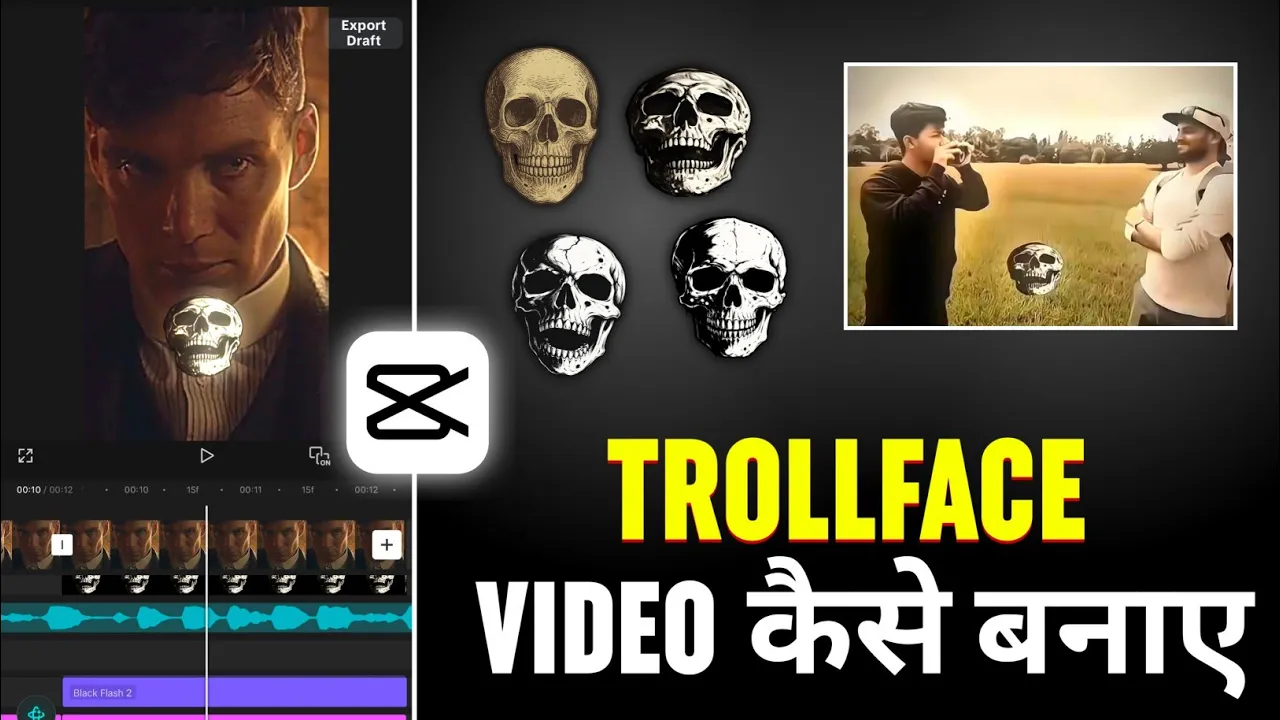
- Troll Face PNG or Skull Emoji overlay.
- Viral meme sound effect or background music.
Recommended Downloads
- CapCut Official Website: https://www.capcut.com/
- Google Play Store: https://play.google.com/store
- PNG Images: https://pngtree.com/
- Free Sound Effects: https://pixabay.com/sound-effects/
- Free Music Library: https://mixkit.co/free-stock-music/
Step 1: Connect to a VPN (If Required)
If some CapCut features aren’t available in your country, simply install any trusted VPN from the Play Store.
Open the VPN app and connect to any available server. Once connected, launch CapCut.
Note: Some CapCut effects and templates are region-locked, so using a VPN may unlock additional editing features.
Step 2: Create a New Project
Open CapCut.
Tap New Project and import the video you want to edit.
For the best results, choose a clip where the person’s facial expression changes dramatically. Funny reactions, exaggerated expressions, or sudden emotional changes work perfectly for Troll Face edits.
After selecting your clip, tap Add.
Step 3: Find the Perfect Frame
Play your video carefully.
Pause exactly where the funniest facial expression appears because that’s where the Troll Face will be added.
Tap on the video timeline.
Scroll all the way to the editing tools and select Freeze.
CapCut will create a still image from that exact frame.
Delete the extra frozen video clip if it’s created automatically.
Step 4: Add the Troll Face Overlay
Go back to the frame you froze.
Tap:
Overlay → Add Overlay
Now choose one of the following:
- Troll Face PNG
- Skull Emoji
- Meme Face PNG
You can download plenty of different Troll Face stickers from the links above or use your own collection.
Currently, the classic Troll Face meme is one of the most viral choices.
Resize the overlay and position it perfectly over the face.
Step 5: Add Animation
Now it’s time to make the edit look professional.
Select the Troll Face overlay.
Open the Animation section.
You’ll find lots of trending animations.
Some great options include:
- Collision
- Flash Shake
- Vibration
- Bounce
- Zoom Pop
In this tutorial, Flash Shake looks amazing.
Set the animation duration to around 1.7 seconds.
Now select the frozen image and apply the same animation with the same duration.
Using identical animations on both layers creates a much smoother effect.
Step 6: Add Video Effects
Effects make the Troll Face edit look much more dramatic.
Go to:
Effects → Video Effects
Effect 1: Edge Glow
Apply Edge Glow.
Set it to affect the entire video.
This creates a glowing outline around the subject.
Effect 2: Shake
Next, apply the Shake effect.
Again, apply it to the full video.
If the shaking feels too strong:
- Reduce Intensity
- Lower Speed
This keeps the animation smooth without looking overdone.
Effect 3: Black Flash
For extra impact, apply the Black Flash effect.
This creates quick flashes during the transformation, making the edit feel much more cinematic.
Step 7: Apply a Trending Filter
Filters completely change the mood of the edit.
Open the Filters section.
Warm yellow-toned filters are currently trending on Instagram.
Some popular choices include:
- Warm Tone
- Pink Fuzz
- Openheimer Style
- Soft Yellow
Choose whichever looks best for your footage.
You can also manually adjust:
- Temperature
- Contrast
- Saturation
- Highlights
- Shadows
A slight yellow tint usually works best for meme edits.
Step 8: Add Background Music
Now your edit needs viral audio.
Mute the original audio if necessary.
Go to:
Audio → Sounds
You have two options:
Option 1
Choose music already saved on your phone.
Option 2
Extract audio from another video.
CapCut allows you to extract music directly from videos stored on your device.
Step 9: Sync the Beat
This is one of the most important parts.
Open the music timeline.
Tap Beat.
Play the music and place a beat marker exactly where the drop happens.
Now move your Troll Face animation so that it appears exactly on that beat.
Perfect synchronization makes the edit feel much more satisfying.
Trim any unnecessary intro footage if needed.
If moving clips changes your timing slightly, simply adjust the overlays until everything lines up perfectly again.
Step 10: Improve Video Quality
If you want even better quality, try adding HDR effects.
Go to:
Effects → Video Effects
Look for:
- Smart Sharpen HDR
- 4K HDR
- HDR Enhance
Apply whichever looks best.
Sometimes HDR can make the video look too artificial.
If that happens, simply skip HDR and manually adjust your video instead.
Recommended adjustments:
- Increase Brightness slightly
- Increase Saturation
- Increase Sharpness
- Increase Clarity
- Reduce Blur
- Reduce Soft Light
These simple tweaks often produce better results than HDR alone.
Step 11: Export the Video
Once everything looks perfect:
- Tap Export
- Select the highest available resolution
- Choose the maximum frame rate
- Set the highest bitrate
- Tap Export
- Save the video to your device
Your viral Troll Face edit is now ready to upload.
Tips for Making Your Troll Face Videos Go Viral
- Use funny facial expressions.
- Keep videos under 15 seconds.
- Sync every effect with the music beat.
- Use trending Instagram audio.
- Add shake and glow effects for more impact.
- Upload in 1080p or 4K whenever possible.
- Post consistently on Instagram Reels and YouTube Shorts.
Final Thoughts
That’s it! As you can see, creating a viral Troll Face video in CapCut is much easier than it looks. With the right expression, smooth animations, synchronized beats, and a few well-placed effects, you can create engaging edits that are perfect for Instagram Reels, YouTube Shorts, and other short-video platforms.
Experiment with different Troll Face PNGs, animations, and filters to develop your own unique editing style. The more creative your edits are, the higher the chances of your videos grabbing attention and going viral.
Happy Editing!