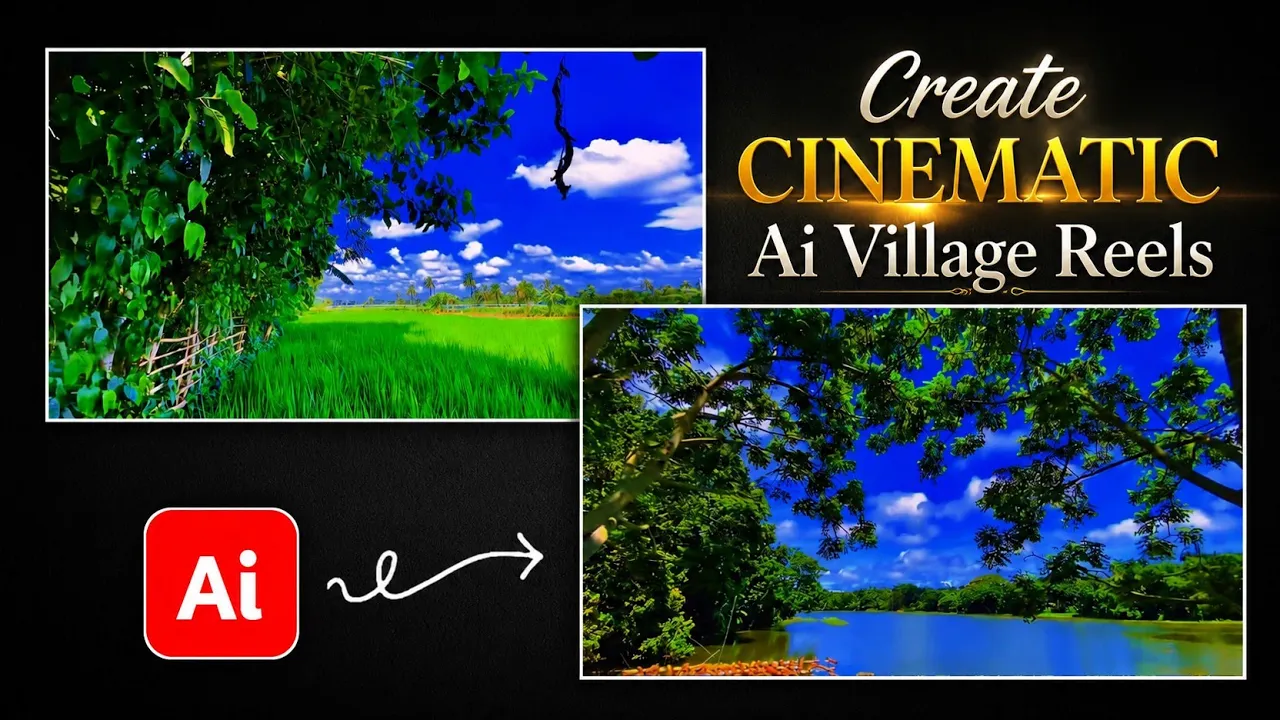
If you’ve been watching those peaceful cinematic village reels on Instagram, YouTube Shorts, or TikTok and wondering how creators make them without expensive cameras or drones, you’re in the right place.
The best part? You don’t need to travel, shoot videos, or own professional equipment anymore. With the power of Artificial Intelligence, you can generate stunning cinematic village videos within minutes.
In this guide, I’ll show you the complete process of creating AI-generated cinematic videos using ChatGPT, Flow AI, and VN Video Editor. Just follow each step, and you’ll be able to create beautiful, high-quality videos ready for social media.
What You’ll Need
Before getting started, install or access these free tools:
- ChatGPT – To generate cinematic AI prompts.
- Flow AI – To convert prompts into realistic AI videos.
- VN Video Editor – For color grading, editing, and exporting your final video.
Helpful Resources:
- ChatGPT: https://chatgpt.com/
- Google AI Flow: https://labs.google/fx/tools/flow
- VN Video Editor: https://www.vlognow.me/
- Google Play Store: https://play.google.com/store
Step 1: Generate AI Cinematic Video Prompts Using ChatGPT
First, open the ChatGPT app or website.
Now paste your cinematic prompt template into ChatGPT. The prompt tells ChatGPT to generate multiple cinematic village scene ideas that can later be converted into AI videos.
One great feature is that you can choose how many prompts you want.
For example:
- Generate 5 prompts
- Generate 25 prompts
- Generate 50 prompts
- Even 100 prompts if you want
Simply replace the default number inside your prompt with the amount of scenes you’d like to create.
After sending the prompt, ChatGPT will instantly generate multiple detailed cinematic scene descriptions.
Customize Every Scene
The generated prompts are only the beginning.
If you want something unique, simply ask ChatGPT to modify the scene.
For example, you can request:
- Dense forests
- Beautiful mountains
- Waterfalls
- Rivers
- Morning fog
- Golden sunrise
- Traditional village houses
- Peaceful countryside roads
- Lush green farms
The more descriptive your prompt is, the more cinematic your final AI video will look.
Once satisfied, copy the generated prompt.
Step 2: Convert Your Prompt into an AI Video Using Flow AI
Next, open your Chrome browser and visit Google Flow AI.
After signing in with your Google account:
- Create a New Project.
- Paste the cinematic prompt you copied from ChatGPT.
- Switch from Image mode to Video mode.
- Select the desired generation settings.
Recommended settings include:
- Model: Omni Flash
- Aspect Ratio: 9:16 for Instagram Reels & Shorts
- Aspect Ratio: 16:9 for YouTube
- Speed: 1x
- Duration: Around 10 seconds
At the time of recording, Omni Flash produces better cinematic results than other available models.
Click Generate, and your AI video will begin rendering.
Since rendering takes a little time, you can return to ChatGPT, copy another prompt, and start generating additional videos simultaneously.
Repeat this process until all your cinematic prompts have been converted into videos.
Step 3: Review Your AI Videos
Once Flow AI finishes processing, preview each generated clip.
You’ll notice how realistic the landscapes appear—even though everything was created entirely with AI.
Some clips may feature:
- Beautiful green valleys
- Peaceful forests
- Flowing rivers
- Waterfalls
- Sunrise lighting
- Drone-like camera movements
If needed, simply regenerate any clip until you’re satisfied.
Download each video in Original Quality before moving on to editing.
Step 4: Enhance Your Videos with VN Video Editor
Now open VN Video Editor.
Create a new project and import the AI-generated video.
You’ll notice a blank ending clip that VN automatically adds.
Simply delete it before editing.
Step 5: Apply Cinematic Color Grading
This is where your AI video becomes truly professional.
Open:
Filter → Adjust
Now fine-tune the following settings based on your footage:
- Slightly increase Exposure
- Increase Contrast
- Set Saturation to around 50%
- Boost Vibrance
- Reduce Temperature slightly to create a cooler blue cinematic tone
Next, open the HSL panel.
Adjust individual colors:
Green
- Increase Saturation
- Slightly adjust Hue
Yellow
- Increase Saturation
- Fine-tune Hue
Blue
- Increase Saturation for a richer sky
These simple adjustments dramatically improve the overall cinematic feel of the video.
The final result often looks like it was filmed using a professional drone—even though it was generated entirely with AI.
Step 6: Hide the AI Watermark
Many AI-generated videos include a small watermark.
A simple trick is to cover it using text.
Inside VN:
- Tap Text
- Choose Title
- Type something like:
- Follow
- Subscribe
- Your Brand Name
- Select a bold font.
- Choose an attractive color.
- Resize the text.
- Place it directly over the watermark.
Stretch the text layer so it remains visible throughout the entire video.
Besides hiding the watermark, this also encourages viewers to follow your page.
Step 7: Add Peaceful Background Music
A cinematic video isn’t complete without relaxing music.
Inside VN:
- Open Audio
- Choose Music
- Use Extract From Video if you already have suitable audio
- Or import your favorite royalty-free peaceful background music
Soft piano, ambient sounds, or gentle instrumental music work best for cinematic village videos.
The right soundtrack instantly enhances the emotional impact of your content.
Step 8: Export Your Final Video
Once everything looks perfect:
- Tap Export
- Switch from Auto to Manual
- Select your preferred resolution and bitrate
- Export the video
Your high-quality cinematic AI video is now ready to upload to:
- Instagram Reels
- YouTube Shorts
- Facebook Reels
- TikTok
- Pinterest Video Pins
Pro Tips for Better AI Cinematic Videos
- Write detailed prompts with lighting, weather, and camera movement.
- Generate multiple scenes and combine them into one longer cinematic reel.
- Use smooth transitions between clips.
- Add slow, relaxing background music.
- Apply subtle color grading for a professional finish.
- Export in the highest quality possible.
Why This Method Works
Instead of spending hours filming in remote locations or renting expensive equipment, AI now lets anyone create breathtaking cinematic landscapes in minutes.
By combining ChatGPT for prompt generation, Google Flow AI for video creation, and VN Video Editor for post-production, you can consistently create professional-looking content suitable for YouTube, Instagram, TikTok, and Facebook.
Whether you’re a beginner, content creator, or digital marketer, this workflow saves time while delivering impressive results.
Final Thoughts
Creating cinematic village videos no longer requires a drone, DSLR, or professional editing skills. AI has made the entire process faster and more accessible than ever before.
Generate detailed prompts with ChatGPT, transform them into realistic videos using Flow AI, polish them inside VN Video Editor, and you’ll have beautiful cinematic content ready for your audience in just a few minutes.
Start experimenting with different landscapes, weather conditions, and camera movements, and you’ll quickly discover just how powerful AI filmmaking has become.
Happy creating!